Showing posts with label Samsung. Show all posts

Monday, February 4, 2019

How to Enable and Use Cursor Control Feature in Samsung Keyboard inSamsung Galaxy S7 Edge

 Image result for Samsung Galaxy S7
If you have difficulty to manually move the text cursor when reviewing or editing a long text you have written, you can act the Samsung keyboard in your Samsung Galaxy S7 Edge as a text cursor controller by enabling the cursor control feature so you can easily move the cursor within the text field simply by sliding your finger across the keyboard.


How to enable the cursor control feature in the Samsung keyboard?
Assuming that the predictive text feature is enabled, you can turn on the cursor control feature in the Samsung keyboard by using the following steps:

  1. On any screen, swipe down the top of the screen to open up the notification panel and then tap at the top right to go to the settings menu.
    Image result for How to enable the cursor control feature in the Samsung keyboard?
  2. Scroll down to the screen to find Language and input and then tap it.
  3. Tap Samsung keyboard.
    Alternatively, when you're entering text, you can quickly go to the Samsung keyboard settings by long tapping the key in the left side of the space bar and then tap .
  4. Scroll down the screen, tap Keyboard swipe and then select Cursor control to enable it.
  5. The cursor control feature has been enabled.


How to use the cursor control feature in the Samsung keyboard?
See the following steps as the example of using this feature when reviewing a long text with the Samsung qwerty keyboard:
  1. Go to the screen or app where you can use the keyboard to enter text, e.g., when reviewing a text memo in the Memo app.
  2. Slide your finger to the desired direction across the keyboard to easily move the text cursor within the text field. As the example, slide your finger upwards across the keyboard to move the text cursor to the top, or slide your finger to the right across the keyboard to move the text cursor to the right.
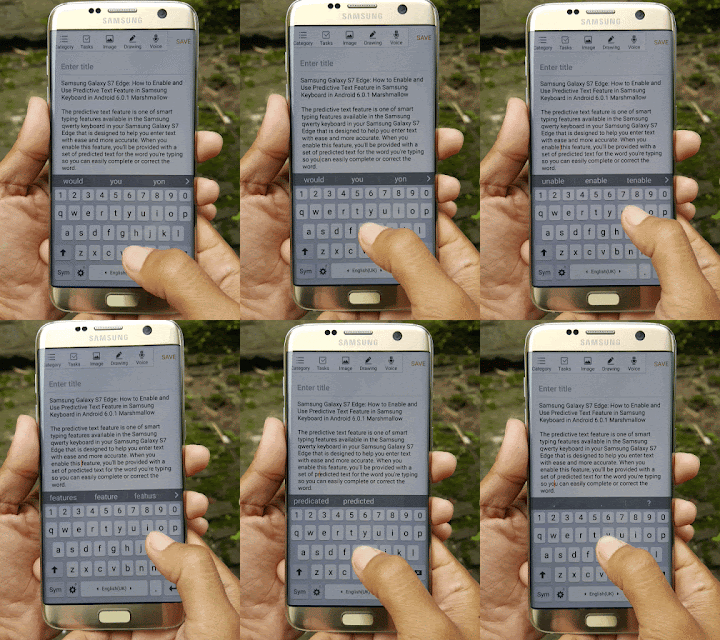
How to Enable and Use Cursor Control Feature in Samsung Keyboard in Samsung Galaxy S7 Edge

 Image result for Galaxy S7 Edge
If you have difficulty to manually move the text cursor when reviewing or editing a long text you have written, you can act the Samsung keyboard in your Samsung Galaxy S7 Edge as a text cursor controller by enabling the cursor control feature so you can easily move the cursor within the text field simply by sliding your finger across the keyboard.


How to enable the cursor control feature in the Samsung keyboard?
Assuming that the predictive text feature is enabled, you can turn on the cursor control feature in the Samsung keyboard by using the following steps:

  1. On any screen, swipe down the top of the screen to open up the notification panel and then tap at the top right to go to the settings menu.
  2. Scroll down to the screen to find Language and input and then tap it.
  3. Tap Samsung keyboard.
    Alternatively, when you're entering text, you can quickly go to the Samsung keyboard settings by long tapping the key in the left side of the space bar and then tap .
  4. Scroll down the screen, tap Keyboard swipe and then select Cursor control to enable it.
  5. The cursor control feature has been enabled.

How to use the cursor control feature in the Samsung keyboard?
See the following steps as the example of using this feature when reviewing a long text with the Samsung qwerty keyboard:
  1. Go to the screen or app where you can use the keyboard to enter text, e.g., when reviewing a text memo in the Memo app.
  2. Slide your finger to the desired direction across the keyboard to easily move the text cursor within the text field. As the example, slide your finger upwards across the keyboard to move the text cursor to the top, or slide your finger to the right across the keyboard to move the text cursor to the right.

How to Fix Missing Microphone Button on Samsung Keyboard on Samsung Galaxy S4

 Image result for How to Fix Missing Microphone Button on Samsung Keyboard on Samsung Galaxy S4
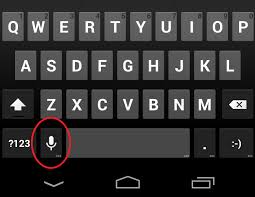
In the stock Samsung keyboard, there are some keys that have several functions, for instance a key in the left side of Space bar(it's usually displayed with a Settings/Cog wheel icon), when you long tap this key, you will see some options available, such as Keyboard settings, Smiley, Clipboard, Microphone, etc. Those hidden button sometimes make some users who want to use one of them have difficulty to find the button.


But, in certain case, the Mic button is completely not available though the user have had long tapped the key in the left side of Space bar, as experienced by one of insider named Linda. She says that she can't find Mic button though she has had long tapped the key in the left side of Space bar when she want to use it to voice to text.
Image result for How to Fix Missing Microphone Button on Samsung Keyboard on Samsung Galaxy S4Image result for How to Fix Missing Microphone Button on Samsung Keyboard on Samsung Galaxy S4

How to fix missing mic button on Samsung keyboard?
If you're also experiencing the same problem, you can make the Mic button available again in your keyboard by following the steps below:
  1. Go to Settings.
  2. Tap My device tab.
  3. Scroll down to find Language and input, then tap it.
  4. Check the box in the left side of Google voice typing to enable this option. Enable this option will make the Mic button available on your Samsung keyboard and vice versa.
  5. Now, open an app that requires you to use keyboard, such as Messaging app.
  6. On keyboard, long tap the key in the left side of Space bar. You should see the Microphone icon displayed in the pop up menu as one of available option.

Well, with this post I also want to apologize to Linda for so late answer. I hope it's not too late. I personally seldom use Mic button to voice to text and more prefer to use keyboard to compose a text message, that's why I don't know much about this feature. So, how about you? Do you often use Mic button on your Samsung keyboard?

How to Access Clipboard in Android Samsung Galaxy S5

 Image result for How to Access Clipboard in Android Samsung Galaxy S5
Copy and paste text is a feature that can be used in Samsung Galaxy S5. This feature will help you duplicating or moving copied text with ease from one app to another. Since all copied text will be saved to the clipboard, it makes you can not only paste a text that you have just copied, but also paste an older copied text by selecting the required one from the clipboard as long as the clipboard has not been cleared yet.

How to access the clipboard?
Generally, there are two methods that can be used to access the clipboard: 1) in an app or screen where you can enter text by long tapping in a text entry field, 2) in an app or screen where you can see the keyboard by utilizing more options in the keyboard.


Method #1: From a text entry field
If you have ever copied text or taken a screenshot then you can easily access the clipboard from a text entry field in any app or screen. But, as the example, we'll access the clipboard from a text entry field when composing a new text message in Messaging app:
  1. Copy a text from any app or take a screenshot.
  2. Now, open Messaging app and then tap to create a new text message.
  3. Long tap in the Enter message field until a pop up window appears and then select Clipboard .
  4. All recently copied text/pictures will be displayed now and you can select the one that you want to paste to.
  5. The selected text or picture will be pasted in the Enter message field.


Method #2: From the keyboard
You can easily access the clipboard in any screen or app where you can use the keyboard. But, as the example, we'll access the clipboard from the keyboard when composing a new text message in Messaging app:
  1. Open Messaging app and then tap to create a new text message.
  2. If necessary, tap the Enter message field to view the keyboard.
  3. Long tap (FYI, other icons may appear instead of depending on the last function that was used) until a pop up window appears and then select to access the clipboard.
  4. All recently copied text/pictures will be displayed now and you can select the one that you want to paste to.
  5. The selected text or picture will be pasted in the Enter message field.

As a note, the copied pictures in clipboard are only available and can be pasted if you're in a text entry field where you can insert pictures, e.g: when composing text or email messages.

How to Fix Missing Microphone Button on Samsung Keyboard Samsung Galaxy S4


In the stock Samsung keyboard, there are some keys that have several functions, for instance a key in the left side of Space bar(it's usually displayed with a Settings/Cog wheel icon), when you long tap this key, you will see some options available, such as Keyboard settings, Smiley, Clipboard, Microphone, etc. Those hidden button sometimes make some users who want to use one of them have difficulty to find the button.


But, in certain case, the Mic button is completely not available though the user have had long tapped the key in the left side of Space bar, as experienced by one of insider named Linda. She says that she can't find Mic button though she has had long tapped the key in the left side of Space bar when she want to use it to voice to text.


How to fix missing mic button on Samsung keyboard?
If you're also experiencing the same problem, you can make the Mic button available again in your keyboard by following the steps below:
  1. Go to Settings.
  2. Tap My device tab.
  3. Scroll down to find Language and input, then tap it.
  4. Check the box in the left side of Google voice typing to enable this option. Enable this option will make the Mic button available on your Samsung keyboard and vice versa.
  5. Now, open an app that requires you to use keyboard, such as Messaging app.
  6. On keyboard, long tap the key in the left side of Space bar. You should see the Microphone icon displayed in the pop up menu as one of available option.

Well, with this post I also want to apologize to Linda for so late answer. I hope it's not too late. I personally seldom use Mic button to voice to text and more prefer to use keyboard to compose a text message, that's why I don't know much about this feature. So, how about you? Do you often use Mic button on your Samsung keyboard?

How to Access Clipboard in Samsung Galaxy S5


Copy and paste text is a feature that can be used in Samsung Galaxy S5. This feature will help you duplicating or moving copied text with ease from one app to another. Since all copied text will be saved to the clipboard, it makes you can not only paste a text that you have just copied, but also paste an older copied text by selecting the required one from the clipboard as long as the clipboard has not been cleared yet.

Image result for How to access the clipboard
How to access the clipboard?
Generally, there are two methods that can be used to access the clipboard: 1) in an app or screen where you can enter text by long tapping in a text entry field, 2) in an app or screen where you can see the keyboard by utilizing more options in the keyboard.


Method #1: From a text entry field
If you have ever copied text or taken a screenshot then you can easily access the clipboard from a text entry field in any app or screen. But, as the example, we'll access the clipboard from a text entry field when composing a new text message in Messaging app:
  1. Copy a text from any app or take a screenshot.
  2. Now, open Messaging app and then tap to create a new text message.
  3. Long tap in the Enter message field until a pop up window appears and then select Clipboard .
  4. All recently copied text/pictures will be displayed now and you can select the one that you want to paste to.
  5. The selected text or picture will be pasted in the Enter message field.


Method #2: From the keyboard
You can easily access the clipboard in any screen or app where you can use the keyboard. But, as the example, we'll access the clipboard from the keyboard when composing a new text message in Messaging app:
  1. Open Messaging app and then tap to create a new text message.
  2. If necessary, tap the Enter message field to view the keyboard.
  3. Long tap (FYI, other icons may appear instead of depending on the last function that was used) until a pop up window appears and then select to access the clipboard.
  4. All recently copied text/pictures will be displayed now and you can select the one that you want to paste to.
  5. The selected text or picture will be pasted in the Enter message field.

As a note, the copied pictures in clipboard are only available and can be pasted if you're in a text entry field where you can insert pictures, e.g: when composing text or email messages.

How to Keep Screen On While Using Your Phone on Samsung Galaxy S8


Do you often use your Samsung Galaxy S8 to read a long-form article in a webpage or read an e-book but often fell annoyed since you have to turn on the screen each time it reaches its screen timeout limit? If that so, you can try using the smart stay feature that works by using the front camera to detect your face and make the screen stays on while you're looking at it.


How to enable the smart stay feature?
You can turn on this feature by using the following steps:

  1. On any screen, swipe down the top of the screen to open up the notification panel and then tap to go to the settings menu.
  2. Tap Advanced features.
  3. Tap the ON/OFF switch next to Smart stay to enable or disable it. When the ON/OFF switch turns , means the smart stay feature is enabled.
Image result for How to enable the smart stay feature

As a note, since this feature works by utilising the front camera, make sure the camera can detect your face to make this feature works best by filling the following conditions:
  • Hold your phone upright and steady.
  • Use your phone in a well-lit environment but the screen is not in direct light.
  • The front camera is not being used by another app.


How to use the smart stay feature?
As the example, we'll use this feature to keep the screen on when reading a long-form article in a webpage by using the following steps:
  1. Open the Internet app and then open a webpage to read an article.
  2. While you're looking the screen to read the article, the front camera will check your face each time the screen timeout period is over. If it detects your face, the screen will stay on. If not, the screen will be turned off.
    Image result for How to use the smart stay feature

Thursday, March 1, 2018

Switching to Navigation Buttons Position inSamsung Galaxy S8


The navigation buttons in Samsung Galaxy S8 is now be the on-screen buttons and can be customised to suit your need, one of which is now you can swap the recents and back buttons position on the navigation bar. By default, the recents button is on the left side of the home button and the back button is on the right side. Swapping those two buttons position will help you use your Samsung Galaxy S8 with more easily especially if you have just come from or often switch with other phones that have different navigation buttons position.


How to switch the position of the navigation buttons?
As the example, we'll change the navigation buttons position from the default Recents-Home-Back to Back-Home-Recents by using the following steps:
  1. On any screen, swipe down the top of the screen to open up the notification panel and then tap to go to the settings menu.
  2. Tap Display.
  3. Scroll down the screen to find Navigation bar and then tap it.
  4. Tap Button layout and then select Back-Home-Recents.
  5. The navigation buttons position has been changed.

Settings of Home Button Pressure Sensitivity in Samsung Galaxy S8


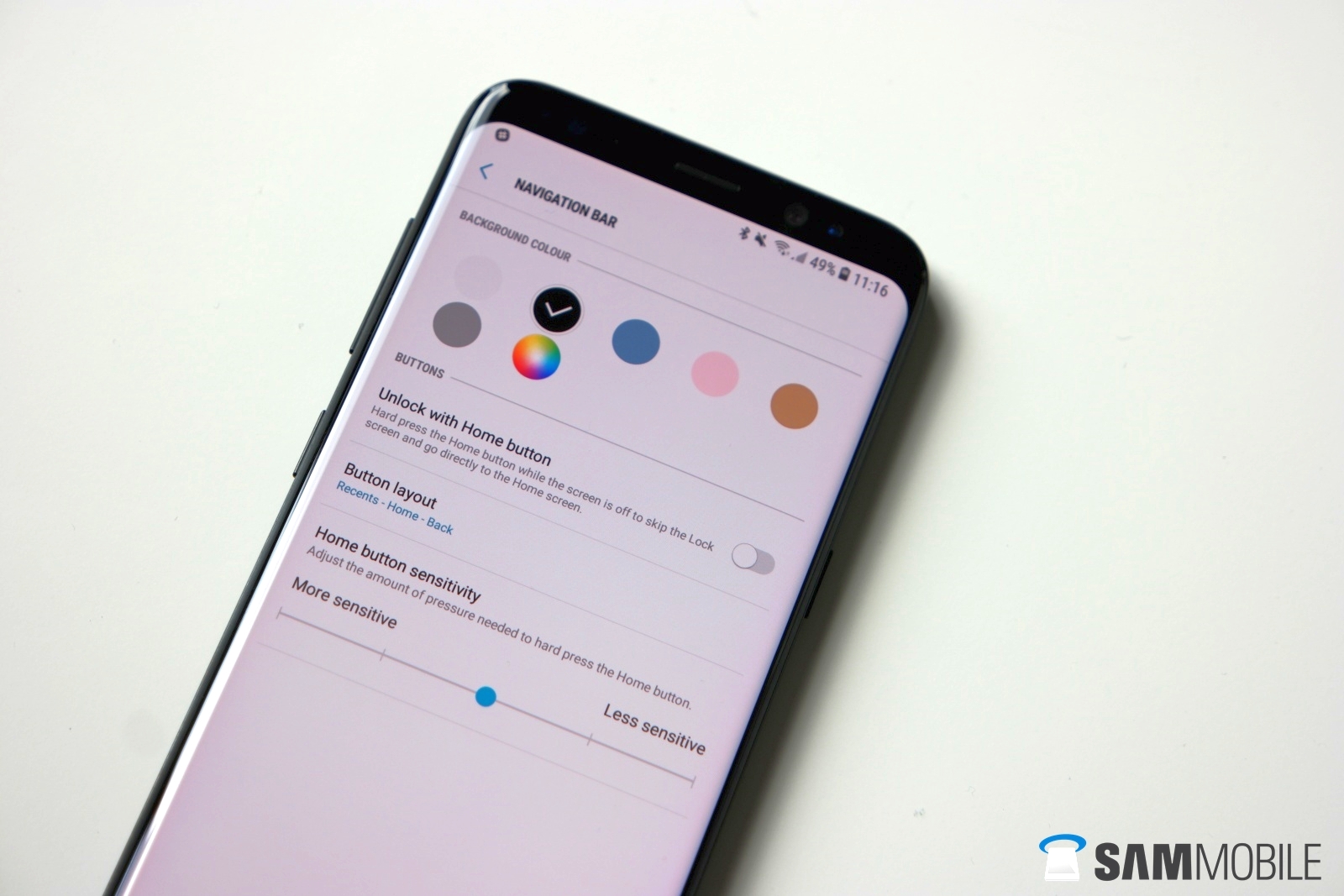
The on-screen home button in your Samsung Galaxy S8 is pressure sensitive. When the unlock with home button feature is enabled, you can easily unlock the screen by hard pressing your finger on the home button when the screen is off. When needed, you can adjust this button pressure sensitivity to be more or less sensitive if it reacts too sensitive or too slow for you.

How to adjust the pressure sensitivity level of the home button?
You can do so by using the following steps:

  1. On any screen, swipe down the top of the screen to open up the notification panel and then tap to go to the settings menu.
  2. Tap Display.
Image result for How to adjust the pressure sensitivity level of the home button?
  1. Scroll down the screen to find Navigation bar and then tap it.
  2. Slide the bar in the Home button sensitivity section to the left for a more sensitive home button or to the right for a less sensitive home button. As a note, if you set the pressure sensitivity level to a less sensitive, you'll need to press the on-screen home button harder to have your phone recognises a hard press on this button.
  3. Image result for How to adjust the pressure sensitivity level of the home button?
  4. The amount of pressure needed to hard press the home button has been adjusted.

How to Fix Cannot Find Home Button on Standby Screen inSamsung Galaxy S8


By default, your Samsung Galaxy S8 will display the on-screen home button when the screen turns off for more convenient access. Since this button is always active, if you cannot find this button on the standby screen, you can still double tap or hard press the area where this button should be on the standby screen to easily turn on or unlock the screen if the unlock with home button feature is enabled. However, if you prefer to do those actions using the on-screen home button, you can set your phone to display this button on the standby screen by selecting the home button option on the always on display feature.


How to display the on-screen home button when the screen turns off?
You can do so by using the following steps:

  1. When the screen is on and unlocked, swipe down the top of the screen to open up the notification panel and then tap to go to the settings menu
  2. Image result for How to Fix Cannot Find Home Button on Standby Screen on Samsung Galaxy S8
  3. Scroll down the screen to find Lock screen and security and then tap it.
  4. Tap Always on display.
  5. If the always on display feature is off, tap the ON/OFF switch to turn it on. The switch turns when it's enabled.
  6. Tap Content to show and then select either Home button and clock or information or Home button only.
    As a note, if you select the Home button and clock or information option, you can then select which clock or information style you want to show on the standby screen.
  7. Now, press the Power key to turn off the screen and go to the standby screen to see the on-screen home button.

Changing of Default Volume Key Control in Samsung Galaxy S8


By default, the default volume key control in your Samsung Galaxy S8 is set to ringtone, which means your phone will adjust the ringtone volume when you press the volume up key or the volume down key. If needed, you can set these keys to adjust the media volume by assigning the default volume key control to media.


How to set the default volume key control to media?
You can do so by using the following steps:

  1. On any screen, swipe down the top of the screen to open up the notification panel and then tap   to go to the settings menu.
  2. Tap Sounds and vibration.
  3. Tap Default volume key control and then select Media.
  4. Now, when you press the volume up or down keys, your phone will adjust the media volume.

Samsung Galaxy S8: How to Use Pin to Top Feature in Messages


If you have difficulty to find the message or conversation from an important contact in the Messages app because it's stacked up by other new messages from other contacts, you can use the pin to top feature in your Samsung Galaxy S8 to pin important conversations so it will stay on top of the conversations list for easier access. If you ever use an older Samsung Galaxy S series, you'll notice that this feature has similar function with the priority senders feature because both these features let you easily access to your important conversations by placing them on top of the conversations list in the Messages app.


How to use the pin to top feature in the Messages app?
Method #1: From the conversations list
You can use this method to easily pin multiple conversations at once. To do so, do as follows:

  1. Open the Messages app.
  2. Long tap a conversation you wish to select and then single tap other conversations to make multiple selection.
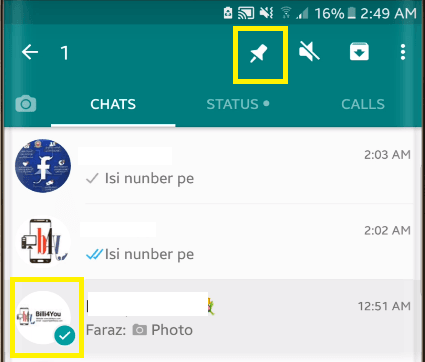
  3. Tap Pin to top at the top right.
  4. The selected conversations have been pinned and will always stay on top of the conversations list even when you receive new messages from other contacts. A pinned conversation will be labelled with this icon .
Image result for How to use the pin to top feature in the Messages app?
Method #2: From within a conversation
You can use this method to easily pin the conversation from a contact whose message is currently displayed on the screen. To do so, do as follows:
  1. While you're opening or reading a message from a contact in the Messages app, tap at the top right and then tap Pin to top at the bottom right. This icon turns when it's enabled.
  2. The selected conversation has been pinned and will always stay on top of the conversations list even when you receive new messages from other contacts. A pinned conversation will be labelled with this icon .